
Support Hub
Support Hub

There are several ways to schedule a meeting in Teams:
The scheduling form is where you’ll give your meeting a title, invite people, and add meeting details. Use the Scheduling Assistant to find a time that works for everyone.
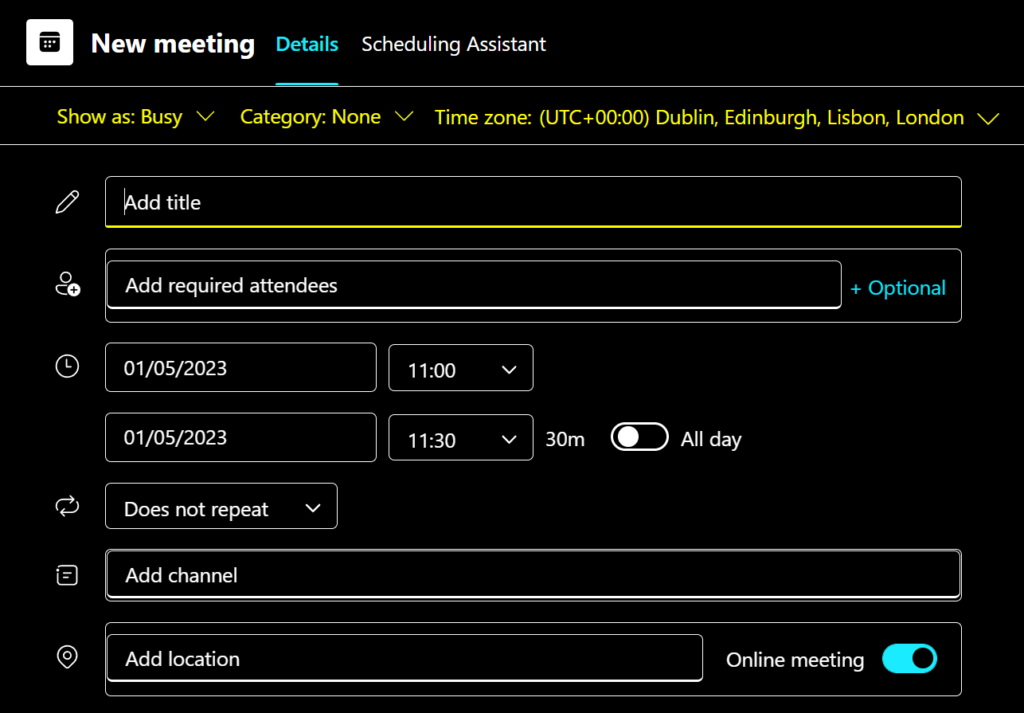
Once you have scheduled a Meeting, it will appear in the Calendar within the Teams app, which is connected to your Calendar in Outlook/Exchange so that no matter which app you are using, you can quickly and easily check your schedule.
For more information, visit the Microsoft Support Article
