
Support Hub
Support Hub
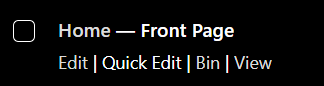
To edit an existing page, simply click on the relevant Page/Post title, when viewing your list of Pages or Posts. Alternatively, click on the Edit link that appears beneath the title when hovering your cursor over each row.
The screen that appears will be exactly the same as the Add New Page/Add New Post screen, only with the existing content displayed. When you’ve finished editing your Page/Post, click the Update button.
If you wish to delete one of your Pages or Posts, click on the Bin link that appears beneath the title when hovering your cursor over each row. This will move the Page/Post to the Bin.
To delete the Page/Post permanently or to restore the Page/Post, click the Bin link at the top of the screen. When the cursor is hovering over each item in the Bin, the Restore and Delete Permanently links appear. Click Delete Permanently to permanently remove a single Page or Post. Clicking Restore will restore the Page or Post.
If you would like to permanently delete or restore numerous items at once, click the checkboxes next to the items you would like to delete or restore and then choose either Restore or Delete Permanently from the Bulk Actions dropdown list at the top of the page. After selecting the appropriate action click the Apply button to make your change. Alternatively, click the Empty Trash button to delete all the items in the Trash.
